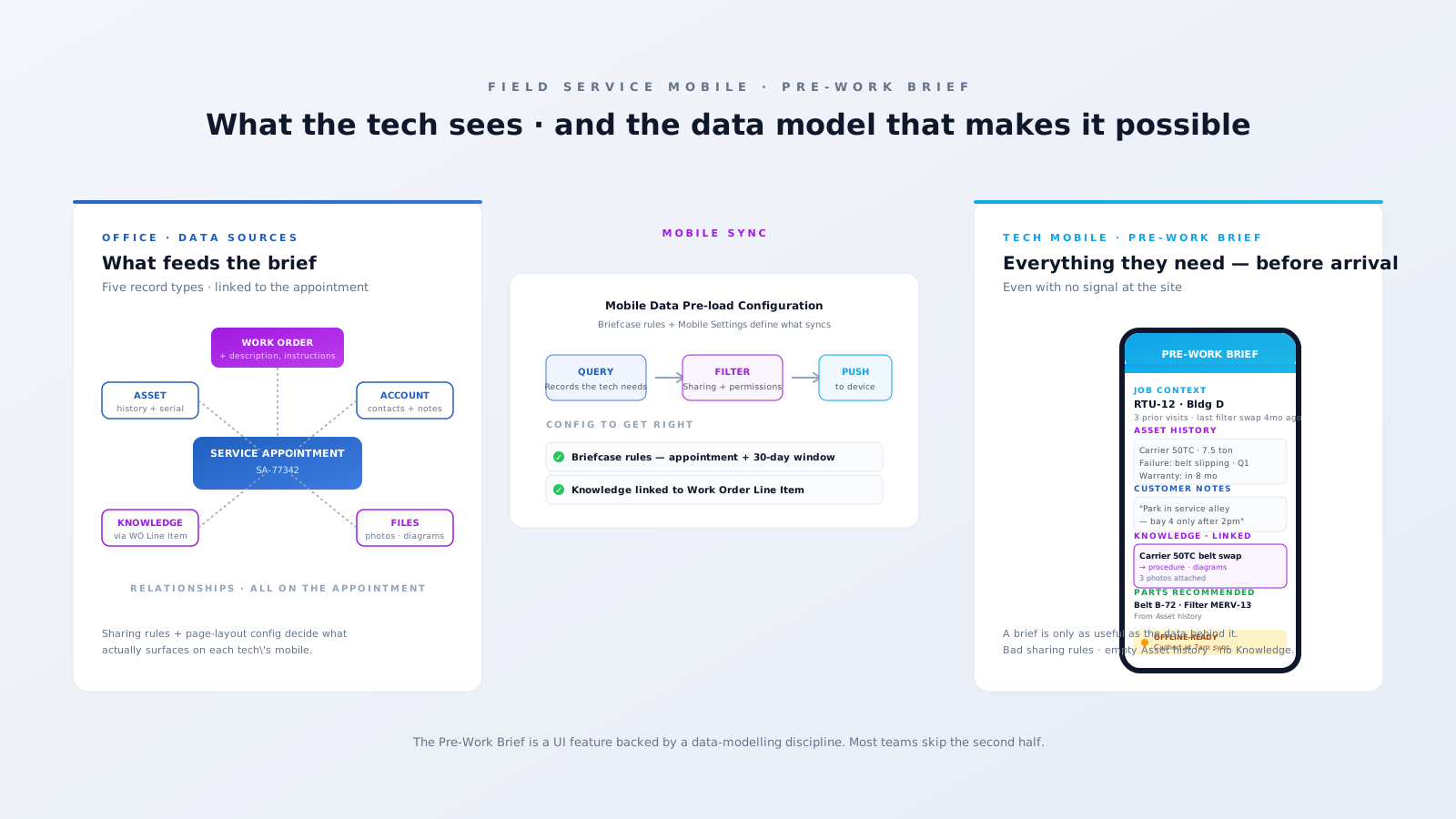
The Pre-Work Brief is the screen a Field Service technician sees when they tap into an appointment on the mobile app — customer details, asset history, customer notes, linked knowledge, parts hint. When it works, the tech rolls up to the site already knowing what they're walking into. When it doesn't, they're calling dispatch from the parking lot. Most demos show the first version. Most live deployments end up closer to the second. The gap is almost never the feature itself — it's the data model and config decisions behind it that nobody documented.
The Pre-Work Brief is not an object. It's an assembly.
There's no PreWorkBrief__c table in Salesforce. The brief is a Lightning page assembled at view time from related records — primarily the Service Appointment and everything it points to: the parent Work Order (and Work Order Line Items), the Asset, the Account, the Contact, attached Files, linked Knowledge Articles, and historical Service Reports. The mobile app composes those records into the brief view based on your Field Service Mobile Settings + page layout + dynamic-form configuration.
That changes everything about how to think about it. The brief is only as rich as the related-record graph behind it. If your Asset records are empty, no asset history shows. If your Knowledge isn't linked to the right object, the article never surfaces. If your sharing rules block the tech from seeing the Account, the customer notes are absent. The Pre-Work Brief is the consequence of your data discipline, not a substitute for it.

The five data sources that feed it — and what each requires
1. Work Order + Work Order Line Items. The job description, fault codes, work type, and instructions live here. The brief surfaces fields from the page layout. Architect step: build a clean, mandatory page layout for Work Order on mobile. Don't leave free-text where you can have picklists. Don't leave fault codes implied — capture them.
2. Asset. Service history, warranty status, install date, model, serial. Surfaced via the Service Appointment → Work Order → Asset relationship. Architect step: populate WorkOrder.AssetId on every relevant Work Order. We see teams whose Work Orders fire from a contact-centre case but never get the Asset linked — and then wonder why the brief shows no history. If the Asset isn't on the Work Order, the brief can't find it.
3. Account + Contact. Customer access notes, primary contact, communication preferences. Most brief gaps live here — teams have great Account data in the office but it doesn't propagate because the Service Appointment's linked Account isn't set, or the field-level security blocks the relevant fields on the mobile profile. Walk this through with your security admin during config, not during go-live.
4. Knowledge. Troubleshooting guides, procedures, photos. This is the gotcha that catches the most teams. Knowledge Articles need to be linked to the Work Order Line Item — not the Service Appointment, not the parent Work Order. The mobile app surfaces Knowledge linked at the Line Item level via the standard relationship. Architect step: enforce Knowledge linking via Flow at Work Order creation, based on Work Type + Asset model.
5. Files. Photos from prior visits, customer-supplied diagrams, equipment manuals as PDFs. These attach via Salesforce Files (ContentDocumentLink) on the Asset, the Work Order, or the Account. Sharing rules and visibility settings matter — Files inherit access rules from the parent record.
The Briefcase rule that decides offline reality
Pre-Work Briefs working offline is not automatic. The Field Service mobile app uses Briefcase Builder rules to decide which records get pre-loaded onto the device when the tech syncs. If you don't configure briefcase rules, the brief works fine on Wi-Fi at the depot — and shows nothing useful at the wellpad with no signal.
Standard briefcase config to get a working offline brief looks roughly like this: pull all Service Appointments where AssignedResource = current user and SchedStartTime is within the next 7–14 days, plus the linked Work Orders, Assets, Accounts, Contacts, related Knowledge Articles (linked to the Line Items), and Files. Get the relationship traversal right and the brief survives a no-signal day. Get it wrong and your tech is reading "no data" while standing on a roof.
The other thing teams miss: Briefcase has size and record-count limits. Pulling all Knowledge for the org onto every tech's device will blow past the limits and break sync. Filter to the asset models or work types relevant to that resource — usually via permission sets or a custom field.
Sharing rules — why one tech sees the brief and another doesn't
The classic ticket: "Tech A's Pre-Work Brief shows the Asset history. Tech B's doesn't. Same job type." Almost always sharing-rule mismatch. Tech B's profile lacks read access to the Asset object, or to fields like WorkOrder.AssetId, or to a parent Account in a different territory. The brief never errors loudly — it just silently omits the section.
Audit profile + permission set + sharing rule access for every record type the brief touches: Service Appointment, Work Order, Work Order Line Item, Asset, Account, Contact, Knowledge, Files. Run the audit per technician role (employee FT, contractor, supervisor) — different roles routinely have different brief experiences for the same job.
The four failure modes we see most
- Empty brief. Asset link missing on Work Order, no Knowledge attached at Line Item level, no historical Service Reports. Fix: data discipline at Work Order creation, plus a Flow that surfaces required-but-missing fields to the dispatcher before the appointment is scheduled.
- Stale brief. Tech viewing cached data from yesterday's sync because today's Briefcase didn't pull the updated record. Fix: tighten briefcase refresh cadence and verify field-level changes propagate.
- Slow brief. Mobile app drags on opening because Briefcase is over-pulling — too much Knowledge, too many Files. Fix: filter Briefcase queries to the resource's territory and certified asset models.
- Inconsistent brief. Different sections for different techs on the same job. Fix: sharing-rule audit per role, permission-set hygiene, and field-level security review for mobile profiles.
Where Agentforce actually helps (and where it doesn't)
The Agentforce pitch is that an AI agent can enrich the brief — generating a narrative summary, surfacing the most relevant Knowledge Article, predicting parts needed. That's real, and it's useful at the top of a clean data model. Agentforce doesn't fix the underlying gaps. If your Asset records are empty, no AI agent can manufacture asset history. If Knowledge isn't linked, no AI agent can find it. The brief gets smarter as the data underneath it gets cleaner — Agentforce is the cherry, not the cake.
A pragmatic config order
If you're building a Pre-Work Brief from scratch — or salvaging a half-working one — work in this order:
- Data model audit. Confirm Work Order has Asset, Account, Contact properly populated. Backfill missing relationships before anything else.
- Page layout + dynamic form. Build the mobile-specific layout. Cull fields nobody reads. Add the ones techs actually use (last-visit summary, customer access note, predicted parts).
- Knowledge linking. Connect Articles at the Work Order Line Item level via a Flow that fires on Line Item creation and uses Work Type + Asset model as match criteria.
- Briefcase rules. Define the relationship traversal, filter by resource, set the time window, test sync.
- Sharing rules. Walk every record type with an admin who knows your security model. Test with a non-admin field user account.
- Mobile pilot. Run with 2–3 senior techs for two weeks. Iterate on what they actually want surfaced.
- Agentforce enrichment (optional). Add the AI layer last, once the data layer is reliable.
Most teams reverse this — they hear "Pre-Work Brief" and dive straight into mobile config without fixing the data model. The brief works for the demo, then quietly degrades over six months as the data debt compounds.
If you're partway through a Field Service rollout and your brief is showing more "no data" than data, the fix is upstream — and it's usually a 4-week cleanup, not a config change. Talk to us about an architecture review if you want a proper diagnosis, or book the 30-min working session if you just want to know whether the brief problem is fixable.