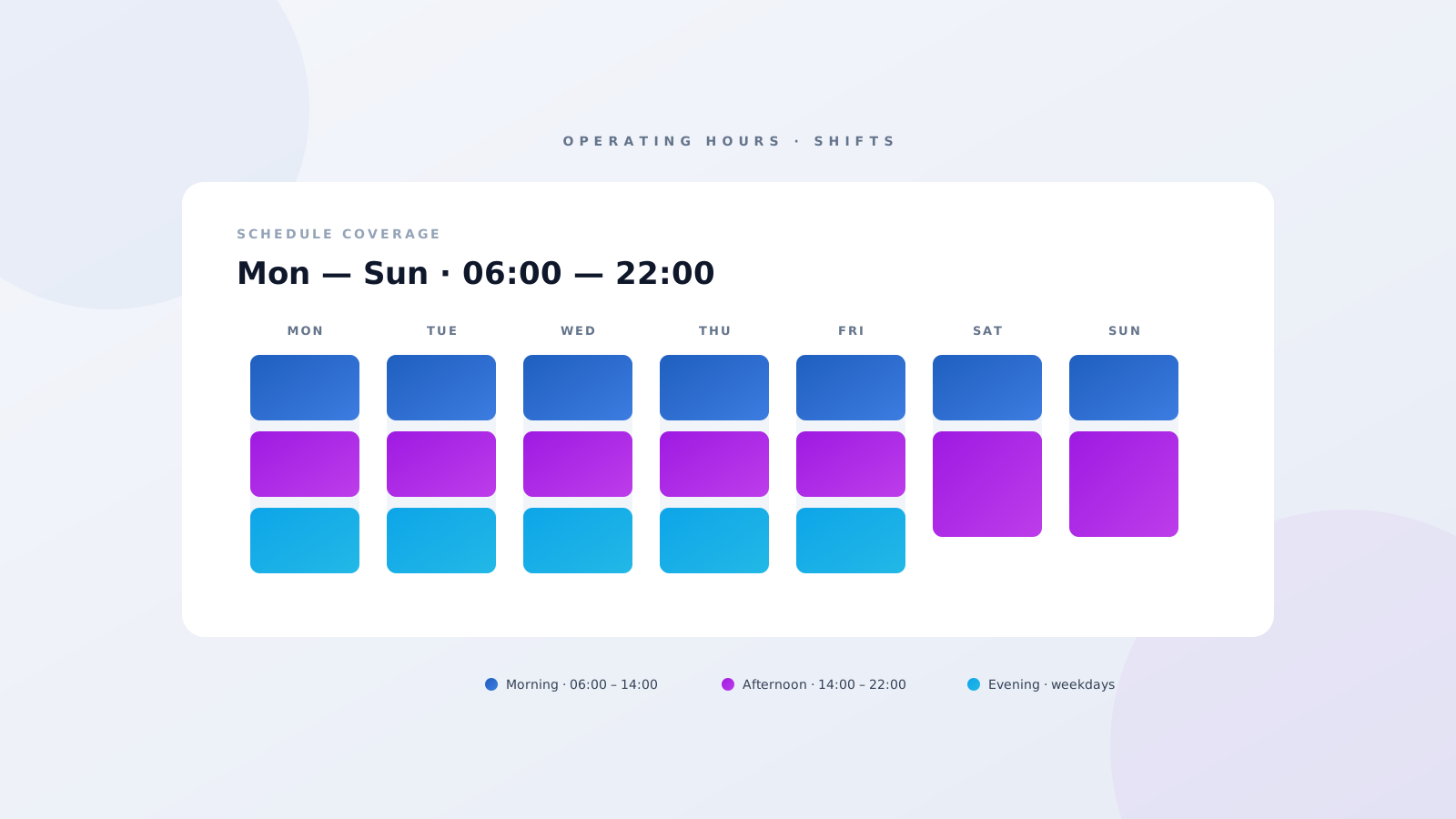
If your Salesforce Field Service team is mostly running standard 9-to-5 patterns, Operating Hours alone will probably do the job. The moment you've got rotating crews, overtime, on-call rotations, weekend cover, or anyone whose week doesn't repeat cleanly, you're going to hit the limit of Operating Hours pretty fast. That's where Shifts come in. They're not a fancier version of Operating Hours — they're a different tool, built for a different problem. Here's how the two actually relate, and how to pick the right one (or both) for your team.
What Operating Hours are for
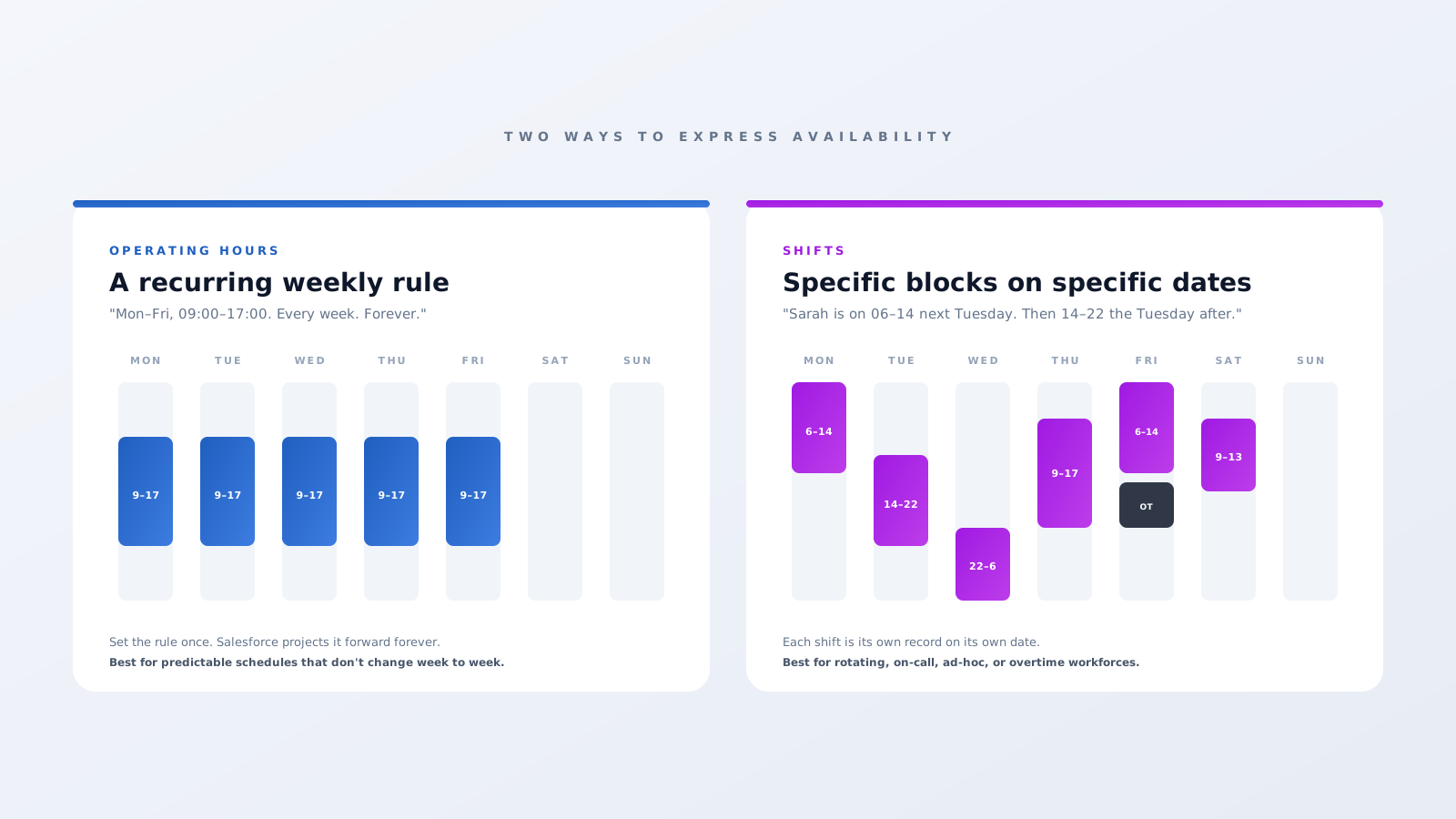
Operating Hours are the original way to tell Salesforce when something is available. They're a weekly recurring rule — Monday 06:00 to 14:00, Tuesday 06:00 to 14:00, and so on. You attach an Operating Hours record to a Service Territory to say when that territory is open, and you can attach one to a Service Territory Member to say when that specific resource works.
The catch is they only handle predictable, repeating schedules. If someone's pattern is the same every week, perfect — set it once and forget about it. The minute the pattern changes — someone covering nights one week and days the next, an extra Saturday for inventory, a stretch of overtime to clear a backlog — Operating Hours start fighting you. You end up either rewriting the record every week, or spinning up time-phased Service Territory Members, neither of which scales.
What Shifts are for
Shifts solve exactly that problem. A Shift is a specific block of working time on a specific date — not a weekly rule. "Sarah works 06:00 to 14:00 on Tuesday the 12th" is a Shift. You can create them as one-offs, generate them from a Shift Template, or roll them out in bulk using a Shift Pattern across a team and a date range.
Salesforce's own docs put it like this: a Shift is "any set of working hours that are not normal operating hours." So Shifts can sit inside the territory's open window, overlap it, or extend past it — overtime is the classic example. Shifts attach to a Service Territory Member, the same way resource Operating Hours do. The difference is you don't need a clean weekly rule. The retail-style rotating worker, the overtime block, the Saturday cover, the on-call rotation — all of those are way easier to model as Shifts than to bend Operating Hours around.
How the Scheduling Policy decides which one wins
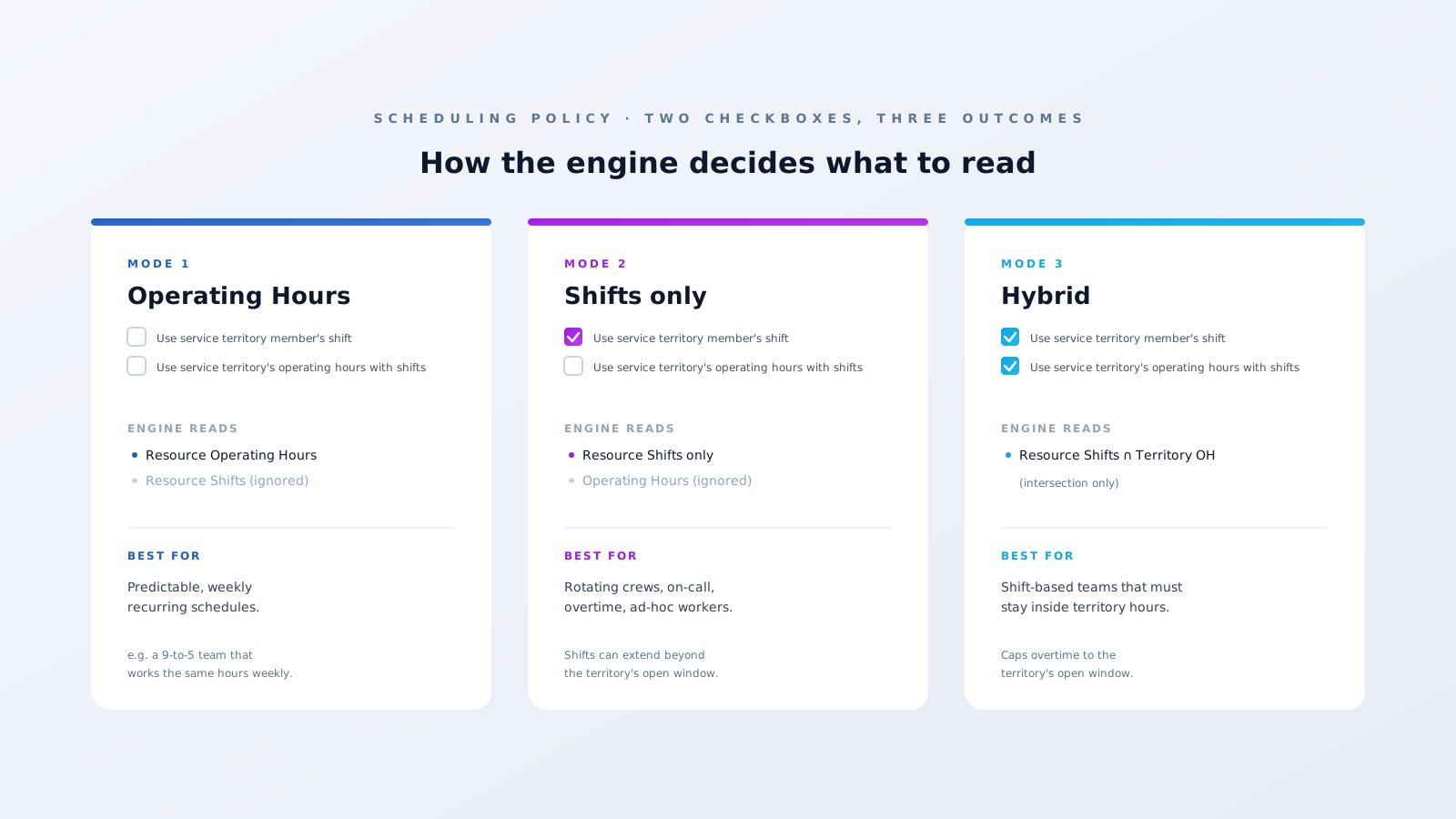
This is the bit that confuses most teams. Whether the engine reads Operating Hours, Shifts, or both is decided by the Scheduling Policy. Two checkboxes on the policy do the heavy lifting:
- Use service territory member's shift. Tick this on its own and the engine ignores the resource's Operating Hours entirely. It only looks at their Shifts.
- Use service territory's operating hours with shifts. Tick this alongside the first one and the engine intersects the resource's Shifts with the territory's Operating Hours. A Shift that runs past the territory's open hours just won't get scheduled past that point — useful when you want a hard ceiling on overtime.
If neither box is ticked, you're in plain Operating Hours mode and any Shifts on the resource are quietly ignored. So the same org can run different policies for different workforces — your standard daytime crew on Operating Hours, your rotating crew on Shifts. The policy you pick at scheduling time is what the engine acts on.
A worked example: utilities running 24/7 cover
Picture a utilities team running emergency cover round the clock. The territory never closes, so its Operating Hours are set to Monday 00:00 through Sunday 24:00. Inside that, three rotating crews work morning, afternoon, and overnight blocks — but the crews swap weeks. Trying to express that with Operating Hours would mean rewriting every technician's availability every week. Way too much admin.
So you build three Shift Templates — Morning, Afternoon, Overnight — and use a Shift Pattern to generate the right Shifts for each technician six weeks ahead. The Scheduling Policy is set to "Use service territory member's shift." When a fault is logged at 02:30 on a Sunday, the engine looks at who's actually rostered at that moment — only the overnight crew shows up in the candidate pool. The morning and afternoon technicians aren't available, not because of who they are, but because no Shift record places them there at that time. Combine that with an Agentforce Dispatch Agent and the assignment happens automatically.
Where teams trip up
- Mixing the two without the right Scheduling Policy. A resource has both Operating Hours and Shifts, but the policy isn't set to honour Shifts. The engine quietly ignores the Shift records.
- Forgetting Shifts can extend past Operating Hours. Useful for overtime — but if you actually want the territory's open window to cap things, you need both checkboxes on, not just the first.
- Using Shifts when you don't need them. If a team genuinely works the same hours every week, Operating Hours is simpler and lower-maintenance. Don't over-engineer.
- Time-zone drift on Shift Patterns. A Pattern anchored to a fixed offset will misalign when daylight saving rolls over. Use a named zone (America/Halifax), not "UTC−4."
- Resource Absences forgotten. Absences sit on top of both Operating Hours and Shifts. Skip them and the engine still thinks the resource is on duty.
The takeaway
Operating Hours and Shifts aren't in competition — they're tools for different shapes of workforce. Predictable, repeating teams run fine on Operating Hours. Rotating, on-call, ad-hoc, overtime — that's where Shifts pull their weight. The Scheduling Policy stitches the two together, and once you've picked the right combination for each team, the engine handles the rest. At Fynaxis, we map this out as part of every Salesforce Field Service implementation. If your scheduler is making decisions you can't explain, it's almost always one of these settings. Get in touch.